





Control your
Life Fitness T5
from your iPhone
Everyone in the house uses the Life Fitness T5 a little differently. Treadmill Pro adapts to each runner with six languages, metric or imperial units, and a choice of light or dark themes, all on the same treadmill.

Free · iPhone, iPad & Android
Set up the Life Fitness T5 your way
Switch between metric and imperial units, pick a language from six available, and choose a theme that suits how and when you run on your Life Fitness T5.
A custom app icon for a treadmill that feels like yours
Treadmill Pro lets you pick from several app icons, a small touch that makes the app controlling your Life Fitness T5 feel like part of your setup, not a generic add-on.

Consistent controls no matter who is running
Whether it is a quick walk or a full training run, the same simple speed and incline controls apply to every session on the T5, so nobody has to relearn the console.
How to connect your Life Fitness T5
- 1
Open the app with Bluetooth on
Make sure your iPhone's Bluetooth is enabled, then launch Treadmill Pro.
- 2
Select the Life Fitness T5 from the scan
The app scans continuously in the background of the Devices screen. As soon as your Life Fitness T5 appears, tap to connect.
- 3
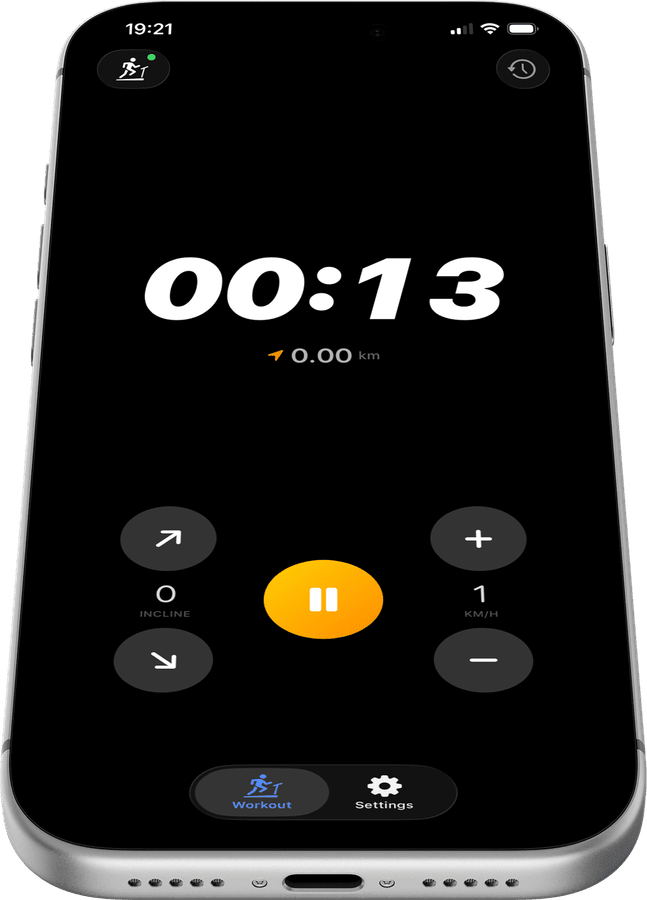
Run your session end to end
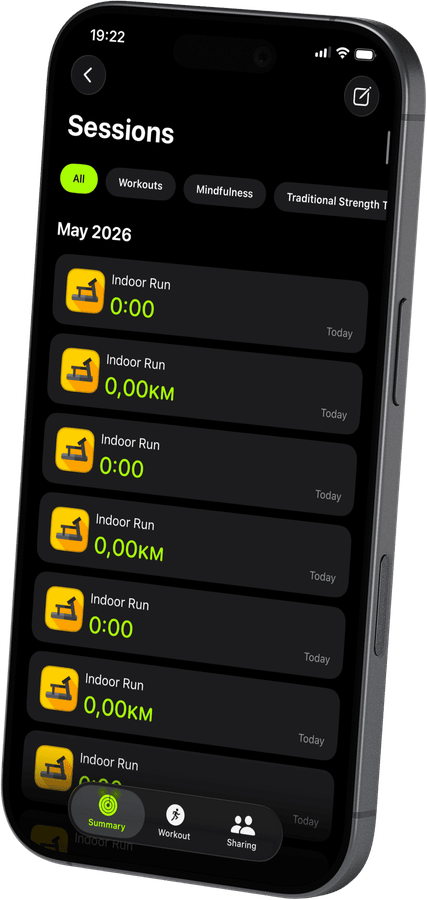
Control every part of your workout from your iPhone, and Treadmill Pro saves the results to Apple Health the moment you stop.
Other supported treadmills
View all supported treadmills


Frequently asked questions
Can I upgrade to Pro for extra features?
Treadmill Pro offers an optional paid upgrade with additional features on top of the free Bluetooth control for the Life Fitness T5. The core connection and tracking stay free either way.
Does the Life Fitness T5 need a firmware update first?
Most Life Fitness T5 units work with Treadmill Pro out of the box. If your treadmill uses an unusually old firmware version, check the manufacturer's app for available updates.
What data is saved after each session?
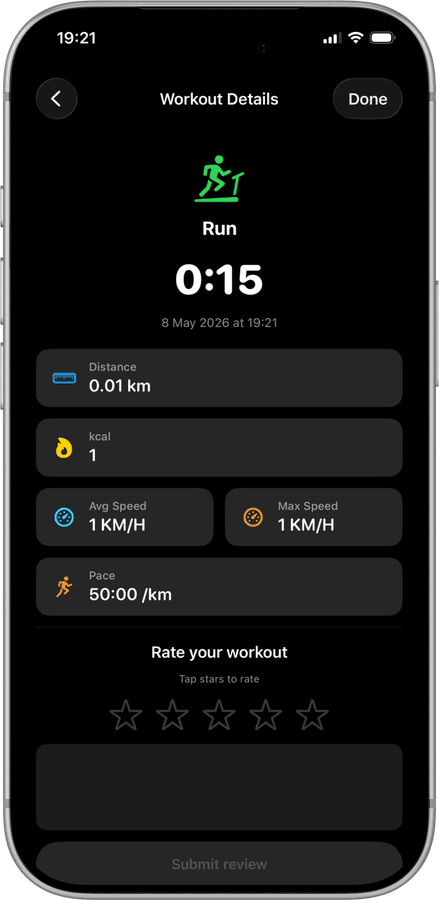
Treadmill Pro saves distance, calories, average and max speed, and pace for every Life Fitness T5 session, then mirrors that data into Apple Health.
Take control of
your T5
Download Treadmill Pro for free and start controlling your Life Fitness T5 from your iPhone in seconds.
Free on the App Store & Google Play · iPhone, iPad & Android