






Control your
LifePro RunningPad
from your iPhone
Setting up the LifePro RunningPad with Treadmill Pro takes less than a minute. Turn on Bluetooth, open the app, and your treadmill is ready to control, no manuals, no account creation, no extra sensors to attach.


Free · iPhone, iPad & Android
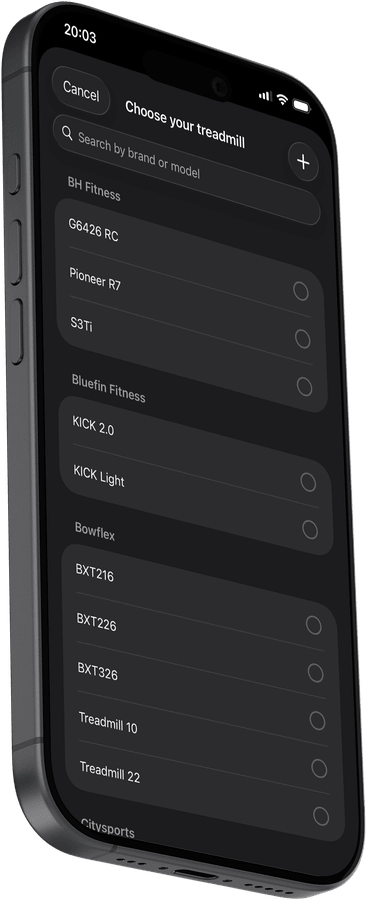
From box to workout in minutes on the LifePro RunningPad
There is no complicated setup wizard. Treadmill Pro finds your LifePro RunningPad the first time you open the app and remembers it for every session after that.
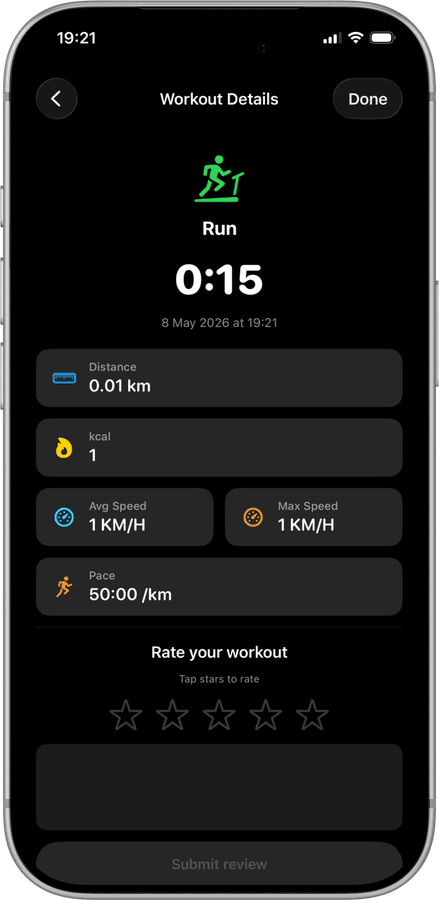
No extra sensors or hubs required
Your LifePro RunningPad connects directly over Bluetooth. There is no bridge device, no separate heart rate strap required, and nothing extra to buy.
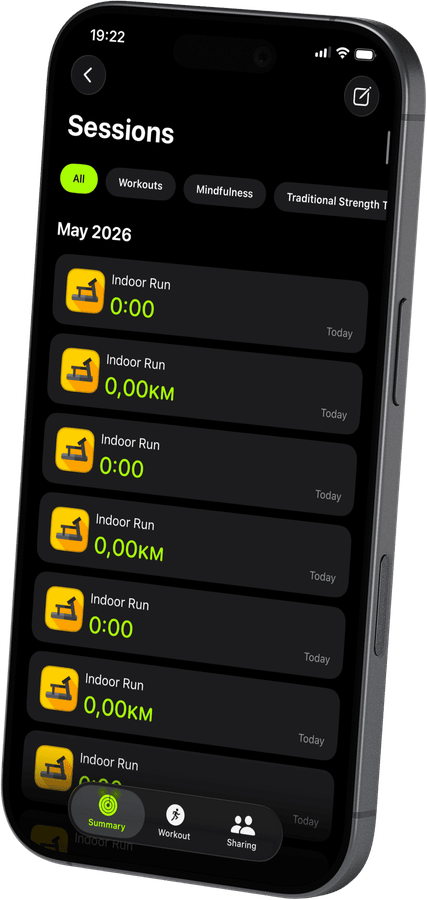

Ready for your very first run
Once connected, Treadmill Pro shows speed, incline, and a live timer right away, so your first workout on the RunningPad is tracked from the very first step.
How to connect your LifePro RunningPad
- 1
Open Treadmill Pro
Launch the app on your iPhone and go to the Devices screen. Make sure Bluetooth is on and your LifePro RunningPad is powered on.
- 2
Select your LifePro RunningPad
The app scans for nearby Bluetooth treadmills automatically. Your machine appears in the list within seconds, tap it to connect.
- 3
Start your session
Once connected, tap Start. Control speed and incline from your iPhone, and your workout syncs automatically to Apple Health when you finish.
Other supported treadmills
View all supported treadmills


Frequently asked questions
Is any extra hardware needed for the LifePro RunningPad?
No. The LifePro RunningPad connects to Treadmill Pro over its built-in Bluetooth, so there is no dongle, bridge, or separate sensor to buy.
Can Treadmill Pro track my heart rate on the RunningPad?
Yes, if you wear an Apple Watch during your LifePro RunningPad session, your heart rate is captured through Apple Health alongside your workout stats.
How accurate is the distance shown for the LifePro RunningPad?
Distance and speed come directly from the LifePro RunningPad itself over Bluetooth, so the numbers in Treadmill Pro match what the treadmill is actually measuring.
Take control of
your RunningPad
Download Treadmill Pro for free and start controlling your LifePro RunningPad from your iPhone in seconds.
Free on the App Store & Google Play · iPhone, iPad & Android